

Staff Timesheets
Introduction
Gojee can manage staff timesheets directly and, where supported, can also send approved timesheets through to Xero. Gojee uses the time records already captured in the system to build each timesheet.
Note: Timesheet sync to Xero is currently only supported for the Australian version of Xero Payroll. If you're in another country you can use the Time Summary report to export the data into a CSV form.
Prerequisites: Time tracking, bulk time entry, or time entry via the daily task review needs to be complete prior to preparing timesheets. Refer to Time Tracking for more information.
All active staff can use timesheets when they have either a Gojee payroll calendar assigned on their staff record, or a supported Xero payroll calendar. Staff can open their own timesheets. Users with the Timesheet Manager role can review staff timesheets more broadly, but customer or manufacturing job managers do not gain timesheet access unless they also have the Timesheet Manager role.
Open or Create Timesheets
This function will prepare timesheets for employees already in the Xero database. For Xero timesheets, Gojee offers a workflow to review the time entries, submit the timesheet for approval and then post into Xero.
Note: If a worker is not linked to Xero, or if your region does not support Xero payroll, you can still manage staff timesheets in Gojee and use Gojee payroll calendars instead of posting to Xero. The Time Summary report also remains available when you need an exported summary. Refer to Reports & Insights for more information.
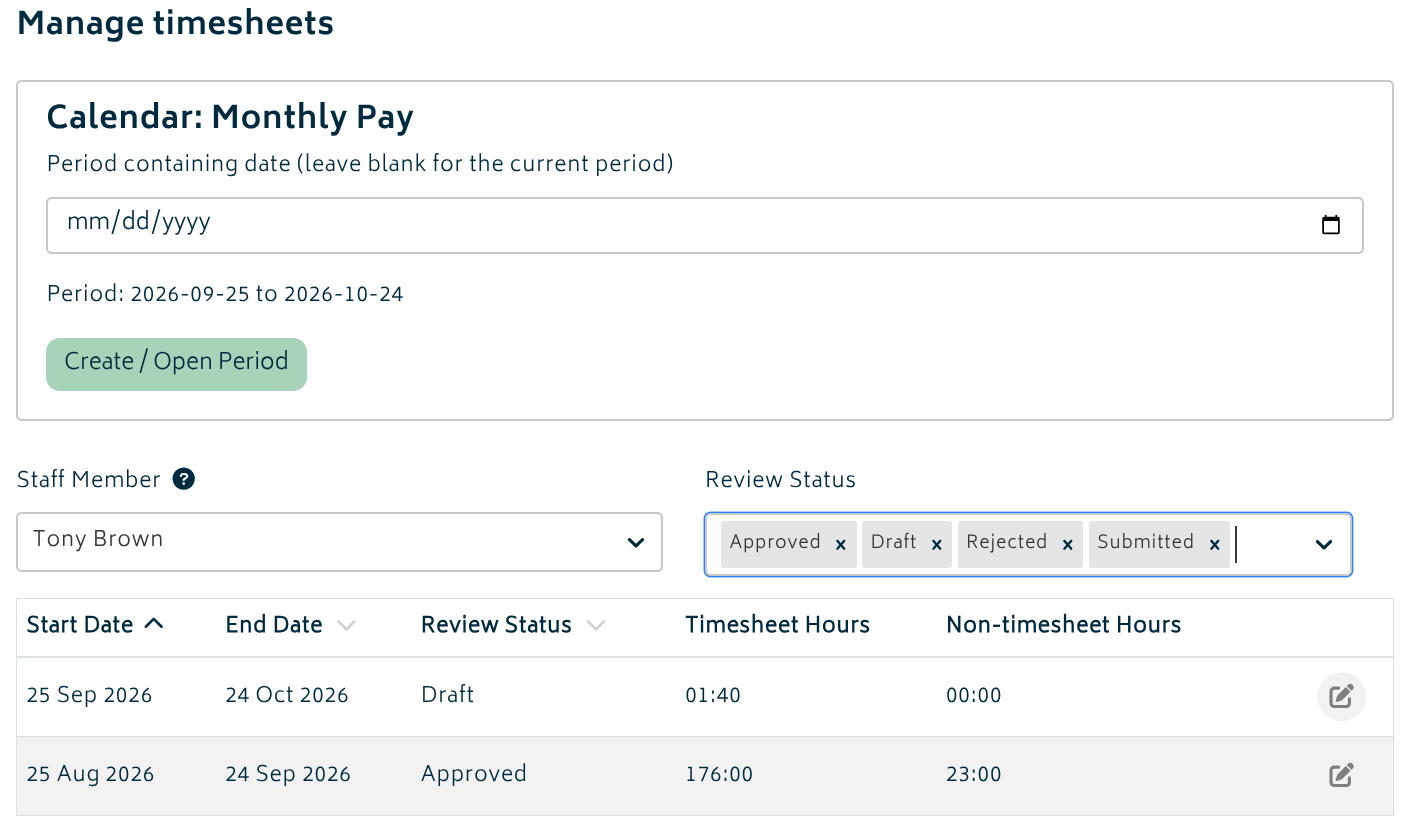
When a Timesheet Manager opens this page they can choose a staff member from the dropdown list.

If the Timesheet Manager has managed staff assigned, the list defaults to Show only managed staff. Clearing that checkbox lets them view timesheets for all active staff.
Once the staff member is selected, Gojee loads the timesheet list using that worker’s assigned payroll calendar:
- Gojee payroll calendar: the page shows the selected calendar and lets you create or open the period containing a chosen date, or the current period if you leave the date blank.
- Xero payroll calendar: the pay periods are synced from Xero and the list also shows Xero posting status information. You cannot create new timesheets freely, as this is managed by Xero.
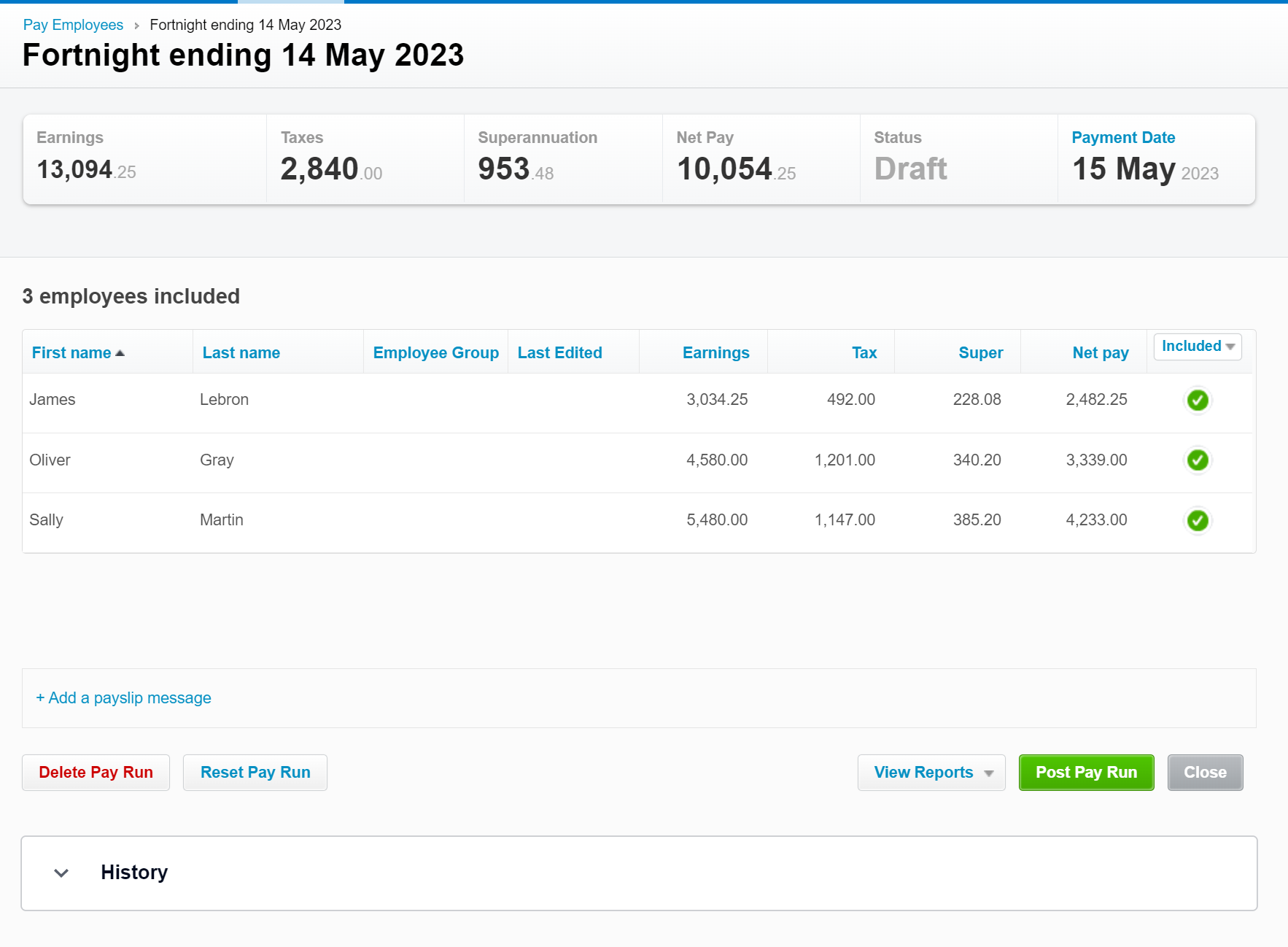
Note: If a Xero-backed timesheet for the current period is not available in Gojee, it is usually because there is already a draft or completed Pay Run in Xero for that pay period. If the payroll is still in draft status, you can “Delete Pay Run” from the Xero Pay Employees menu and then sync Xero from Gojee to pull in the latest information:
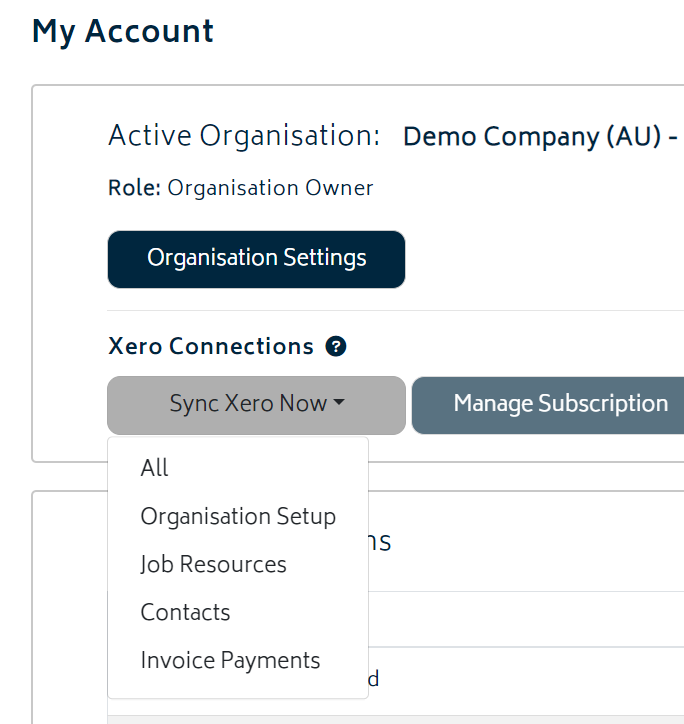
To sync the changes with Gojee, go to the My Account menu in Gojee from the top right-hand menu and click on Sync Xero Now, and then select “Organisation Setup” from the dropdown provided.
Once the pay period is shown in Gojee for the employee, click on the Edit icon on the right of the row corresponding to the pay period to begin reviewing and processing the timesheet for that period.

Review and Process a Timesheet
Once you click on the edit icon, Gojee opens the timesheet review page for that staff member and pay period:
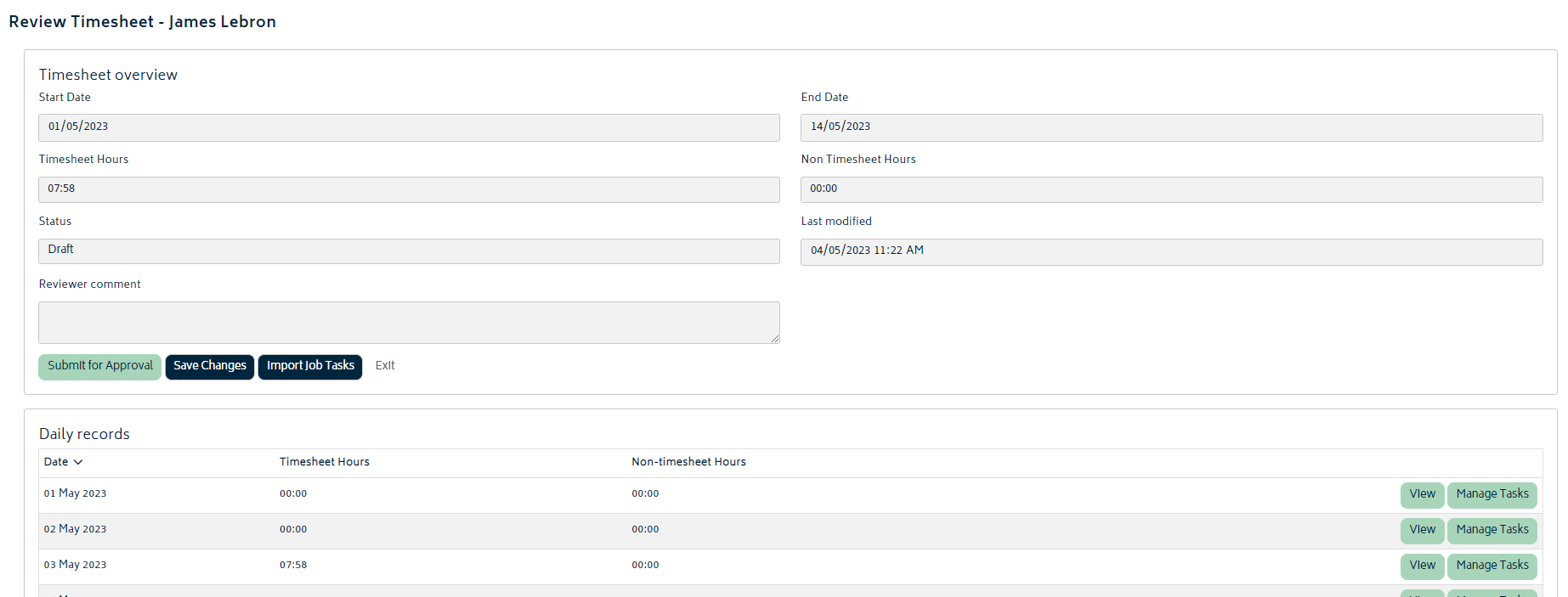
- The overview at the top shows the period dates, timesheet hours, non-timesheet hours, review status, last modified timestamp, and Xero status when that timesheet can be posted to Xero.
- While a timesheet is in Draft or Rejected status, use Import Job Tasks to reload the latest logged work into the timesheet before reviewing it further.
- Staff can submit their own draft timesheets for approval. Submitted timesheets can then be approved or rejected by a Timesheet Manager, with a reviewer comment if needed.
- If the timesheet is approved and the worker’s calendar supports Xero posting, a Post to Xero button is shown. If posting fails, the button changes to Retry Post to Xero.
- If Xero posting is not available for that timesheet, it can still be reviewed and approved within Gojee.
- Once the data is loaded, there will be a row in the daily records section for each day in the pay period showing the timesheet hours and non-timesheet hours for that day.
This is the suggested workflow for checking a timesheet before submitting or approving it.
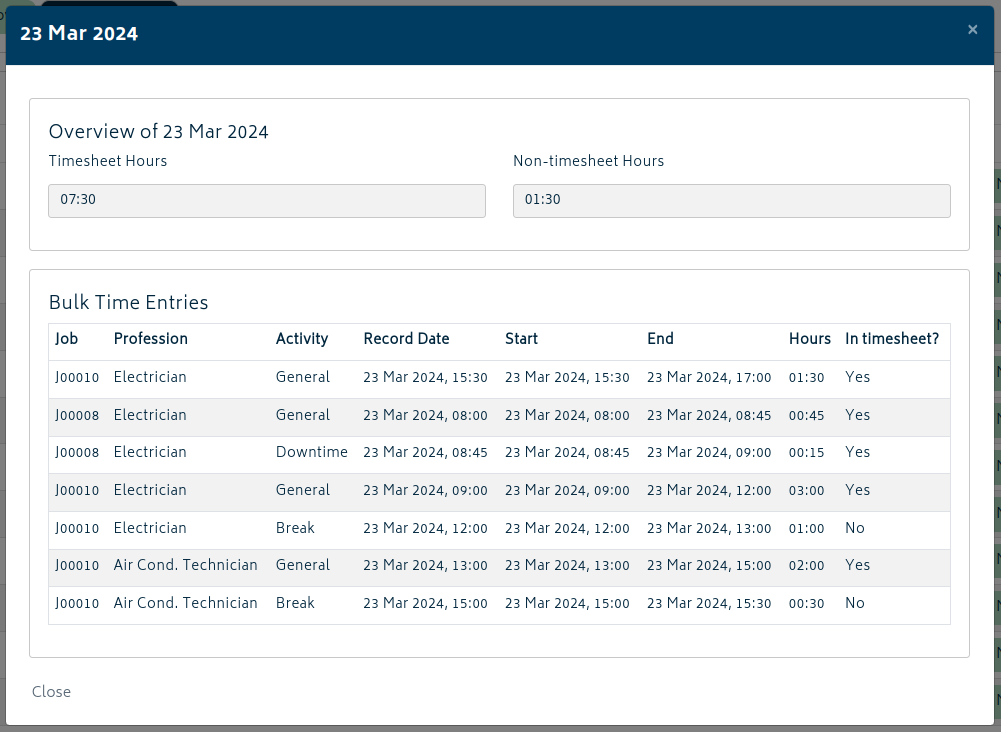
- Click the View button to open a day summary. This shows the underlying Job Execution Entries and any Bulk Time Entries, including job, profession, activity, start and end times, hours, and whether each entry counted in the timesheet.
- The Manage Tasks button opens the Daily Task Review page for that employee and day. This is the best place to correct the underlying logged work when you need to change the linked job, profession, activity, or entered time.
- After making changes in Daily Task Review, return to the timesheet and click Import Job Tasks again so the timesheet reflects the latest logged work.
- The Manage Tasks button is only shown when the current user is the employee whose timesheet is being viewed, or when the user has both Timesheet Manager access and job-manager access.
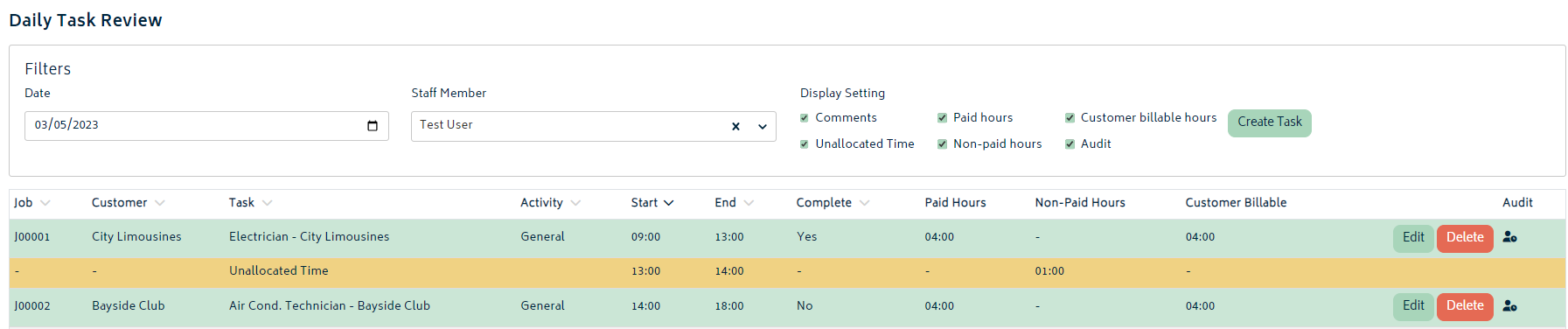
View Daily Entries and Manage Tasks
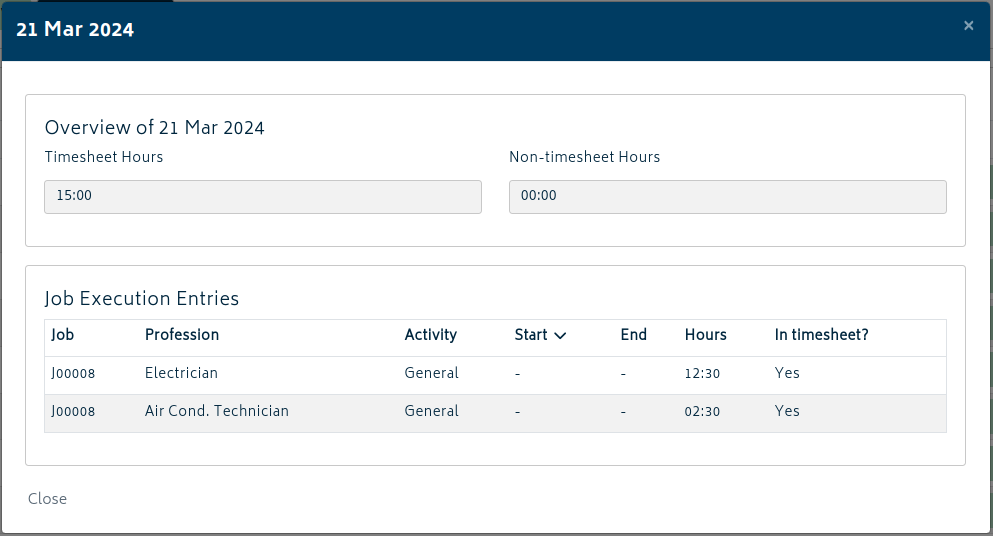
The View dialog allows you to see the breakdown of individual logged times, and how they were logged into the sheet – whether by job execution or by bulk entry.
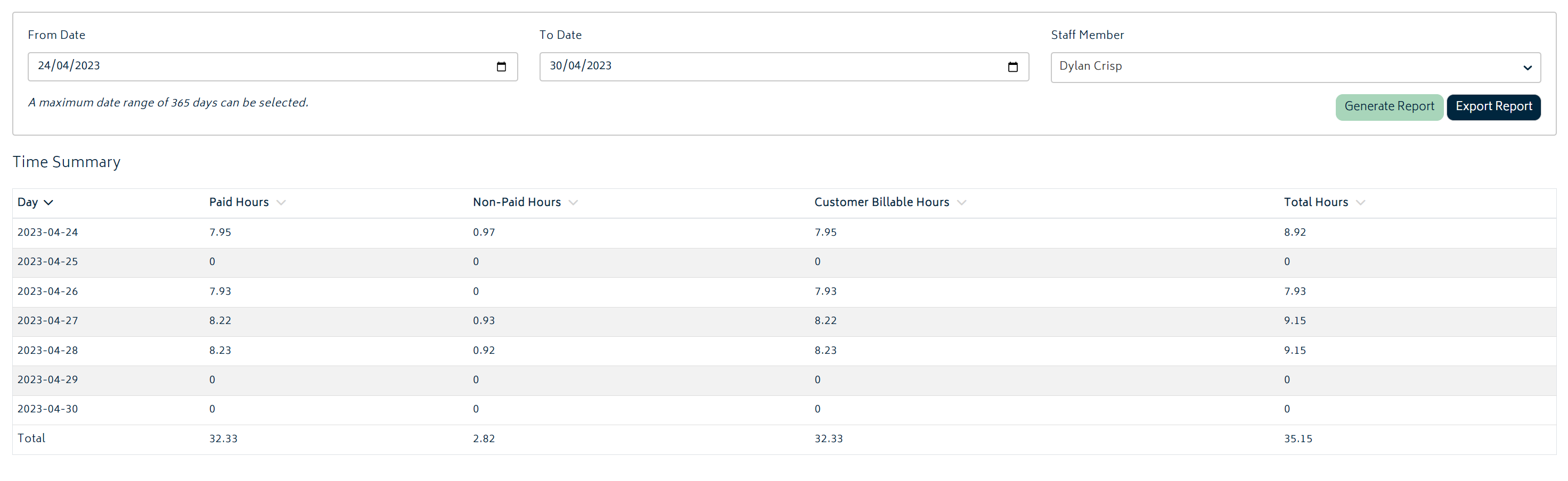
Time Summary Report
Navigate to Reports and Insights > Time Summary and the report page will be shown. This report will show times for both employees and contractors. From this page you can select a date range and a worker and then hit Generate Report. The report can also be exported to a CSV file by clicking on the Export Report button.
Next: Back to Knowledge Base.